Bulk Subscriber Logout
Step by Step Instructions For Moving
Exchange 5.5 Mailboxes with the Cisco Unity Bulk Logout Utility
To force Cisco Unity to log out of multiple Exchange 5.5
mailboxes
To move Exchange 5.5 mailboxes
To run the Exchange 5.5 Optimizer
Overview
From time to time you may need to move subscriber mailboxes to another Exchange server that is faster or has more disk space available, or you may want to move the mailboxes when you add new servers to your Exchange network. It is possible to move subscribers between Exchange servers without having to shut down Cisco Unity by using the Cisco Unity Bulk Logout Utility.
Requirements/Special Notes
This tool only runs with Exchange 55 as the back end, not Domino or Exchange 2000. It should not be necessary to run this tool if you’re using Exchange 2000, it handles moving mailboxes fine with clients logged into the mailbox.
Step by Step Instructions For Moving Exchange 5.5 Mailboxes with the Cisco Unity Bulk Logout Utility
If your Cisco Unity server is connected to Exchange 2000,
you can follow the procedure offered in the Microsoft Exchange documentation to
move mailboxes from one server to another. However, if your Cisco Unity
server is connected to Exchange 5.5, you need to use the Bulk Subscriber
Logout utility to direct the Cisco Unity server(s) to log out of the
mailboxes that you plan to move before you move them in Exchange. With the Bulk
Logout utility, you can select the subscriber mailboxes that you want to log
out of Exchange 5.5 on each Cisco Unity server in your site. You can
select one or more of the following:
 All subscriber mailboxes.
A group of subscriber mailboxes based on an
extension range, membership in a public distribution list, an association with
a class of service (COS), or an assigned switch (in dual-switch environments).
You can also use a comma-separated value (CSV) file
to select subscribers based on their Exchange aliases. CSV is a common text
file format for moving data from one data store to another. You can edit CSV
files in a text editor or in a spreadsheet application. If you choose to select
subscribers from a CSV file, format your file by using the following guidelines
to ensure that it parses correctly:
Separate values by commas. Do not use a tab,
spaces, or a semicolon to separate values in the file.
Include a column header titled
“alias” in the first line. Column headers are not case sensitive,
and can be formatted with spaces on the left, right, or on both sides.
For example:
first name, last name, home server,
alias, domain
Alex, Abade, EXServer1, aabade,
ENG_MAIN
Kelly, Bader, EXServer1, kbader,
ENG_MAIN
To move multiple subscriber mailboxes between
Exchange 5.5 servers while Cisco Unity is running, do the appropriate
procedures, in the order listed. Note that if your Cisco Unity server is
connected to Exchange 2000, you do not need to perform these procedures.
Instead, you can move Exchange 2000 mailboxes using the procedure specified in
the Microsoft Exchange documentation.
To force Cisco Unity to log out of multiple Exchange 5.5 mailboxes
1.
Confirm that subscribers have exited Outlook and
have logged off of Cisco Unity.
Caution
The mailboxes that you plan to move must not be accessed
until after they have been moved and the Exchange directory has replicated.
Subscribers must understand not to start Outlook or to access Cisco Unity
over the phone until notified
by you that it is okay to do so. If mailboxes are accessed during this process,
subscribers will be disconnected, and the Cisco Unity server may need to
be restarted.
3.
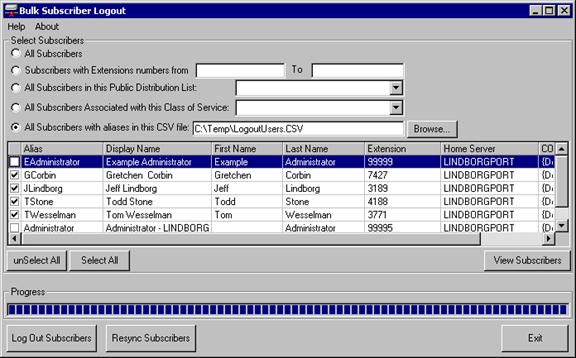
In the Bulk Subscriber Logout window, select the
subscribers that you want to log out of Exchange. To do so, perform one of the
following actions:
Click All Subscribers.
Click Subscribers With Extension Numbers,
and then enter the range in the From and To fields.
Click All Subscribers in This Public
Distribution List, and then click the distribution list from the list in
the adjacent field.
Click All Subscribers Associated With This
Class of Service, and then click the COS from the list in the adjacent
field.
Click All Subscribers With Aliases in This
CSV File, and then click Browse to locate the CSV file.
4.
Click the Add Subscribers To Grid button.
The subscribers that you selected in Step 3 are displayed in the
grid. (If you selected subscribers from a CSV file, note that only those
subscribers with mailboxes associated with the local Cisco Unity server
are displayed.)
5.
Repeat Steps 3
and Step 4,
if appropriate, to add additional subscribers to the grid.
6.
If necessary, check or uncheck the boxes next to
each subscriber listed in the grid to add or remove subscribers from the group
that you selected for log out.
8.
If subscribers are associated with more than
Cisco Unity server, or if you are not sure which Exchange mailboxes are
associated with which Cisco Unity servers in your site, repeat Step 2
through Step 7
for each Cisco Unity server in your site as necessary.
9.
Leave the Bulk Subscriber Logout window open,
and then move subscriber mailboxes by performing the procedure, To move
Exchange 5.5 mailboxes.
To move Exchange 5.5 mailboxes
1.
On the Start menu, click Programs > Microsoft
Exchange > Microsoft Exchange Administrator.
2.
In the tree in the left pane, click Recipients,
and then click the name(s) of the subscriber(s) in the right pane.
3.
Click Tools > Move Mailbox.
4.
In the Move Mailbox To list, click the server to
which the mailbox(es) will be moved.
5.
Click OK to move the mailbox(es).
6.
Once the mailbox(es) have been moved,
subscribers may not be able to access messages until the directory is updated.
You can either force directory replication, or you can wait for the directory
replication to occur automatically, depending upon your Exchange settings.
Before you force directory replication, it is a good idea to discuss this with the Exchange administrator for your site. If you decide to force directory replication, do so for the Cisco Unity server where the mailbox(es) used to reside and for the server to which the mailbox(es) were moved. Refer to the Microsoft Exchange documentation for detailed procedures.
7.
Continue with the procedure, To synchronize the
servers.
To synchronize the servers
Repeat the following procedure for each Cisco Unity
server with subscribers that had their mailboxes moved in the previous
procedure.
1.
In the Bulk Subscriber Logout window, click the Resynch
Subscribers button, and follow the on-screen instructions. This step
synchronizes the Cisco Unity cache with the Exchange 5.5 directory,
logging Cisco Unity back into the subscriber mailboxes.
2.
Click the Exit button.
3.
Notify subscribers that they can log on to both
Outlook and Cisco Unity.
To run the Exchange 5.5 Optimizer
If you have moved more than 100 subscribers in
Exchange 5.5, run the Exchange Optimizer on the Cisco Unity server.
Otherwise, you may encounter problems with Cisco Unity not accepting
dialed extensions for subscribers and call handlers, and with
conversation-related errors in the event log. If there are other Exchange
servers in the site, you do not need to run the Exchange Optimizer on the other
Exchange servers.
1.
Shut down the Cisco Unity server, if it is
running.
2.
On the Start menu, click Programs > Microsoft
Exchange > Microsoft Exchange Optimizer.
3.
Follow the on-screen instructions. If the
Exchange Optimizer recommends that you move files, you can safely choose not to
do so.
4.
If the Exchange 5.5 Optimizer displays an
error message saying that a service could not be shut down, perform the
following actions:
Exit the Exchange Optimizer.
Right-click the Cisco Unity icon in
the status area of the taskbar, and click Exit.
Start the Exchange Optimizer, and follow
the on-screen instructions.
5.
When the Exchange Optimizer is finished, restart
the Cisco Unity server.
6.
Notify subscribers that they can log on to both
Outlook and Cisco Unity.
Options
The Log Out Subscribers button will log Cisco Unity out of
all users shown in the grid that have a checkbox in the far left column.
The Resynch Subscribers button will force Unity to log back
into the subscriber’s listed on the grid that have a checkbox in the far
left column.
You can use the Unselect All or Select All buttons to check
or uncheck all subscribers listed in the grid.
The Force MWI Off check box can be set which will force a lamp off code to be issued for each user selected at the time they are being logged out. Be aware that depending on the switch integration, these lamps may not actually be delivered immediately. In the case of an analog integration these lamp requests can queue up and take a while to be delivered.
Choosing a Language Interface
This tool comes with built in support for several languages including US English, French, German and Japanese. By default it will display the language the Windows operating system is set for. If that language is not supported it will default to US English.
To manually force the tool to show a different language than the default, you can select the Help | About menu option and click the “Change Language” hyperlink on the About box. The languages installed will be presented in a drop down list and the display will update into that language immediately when you select it.
NOTE: If you select Japanese as a display language and you are not running on a version of Windows that has the Japanese code page installed, the display will show all “?” characters. This is expected.
Obtaining Updates
To check for updates to this tool, visit http://www.ciscounitytools.com
Revision History
Version 3.0.19 – 8/1/2003
Updated version checking logic for the 4.0(3)
release
Version 3.0.18
Fixed some misspellings reported from the field
Added functionality to check for updated version
Version 3.0.16
Updated localization files for 4.0(2) release of
Unity
Version 3.0.15
Made sure only full Exchange and Domino
subscribers could be added to the list for logout: CSCea06954.
Version 3.0.14
Fixed problem on Japanese OS installs where an
array index error was being thrown during the logout process. This addresses CSCdz32695
Version 3.0.13
Fixed problem with importing subscriber to be
logged out using CSV input.
Fixed problem with alternate language being
selected causing a problem with CSV import
Forced tool to only run against Exchange 5.5.
Exchange 2000 and Domino back ends are not supported – it is unnecessary
to log Unity out of mailstores other than 5.5 regardless.
Version 3.0.12
Fixed problems with Japanese localization
Fixed problem with switch selection list in
4.0(1) and later
Version 3.0.11
Added check for Domino back end. This tool only works with Exchange 55 or
2K.
Version 3.0.10
Included updated localization DLLs
Updated help file
Version 3.0.9
Added localization support for French, Japanese
and German languages.
Version 3.0.6
Updated help, removed AnswerMonkey specific
items from help/about and added the tool to the 3.1(3) release CD
Version 3.0.5
Reworked version scheme for 3.0 applications
– rolled major version to match.
Updated help file, fixed some inaccuracies
fixed some UI errors noted by technical
publications folks during review
Version 1.0.131
Reworked the MWI off option when logging out
users, updated interface to the notifier.
Tested on Analog, serial and Call
Manager integrations and it seems to work OK.
Version - 1.0.96
Hid the "force
MWI off" checkbox. Some
integrations are having problems with this and it's causing confusion.
Version – 1.0.81
First tool ship
© 2002 Cisco Systems, Inc. -- Company Confidential