Overview
The Public Distribution List Info Dump (PDLID) tool is designed to allow sites to get a fully flattened list of all distribution list members across all Unity servers in a site with a single run. PDLD does this by walking through Active Directory and iterating over every user in every public distribution list, including it’s sub lists (and sub sub list and so on). It produces a flat CSV file that includes all the distribution lists and users found (see Logging section below for details on format).
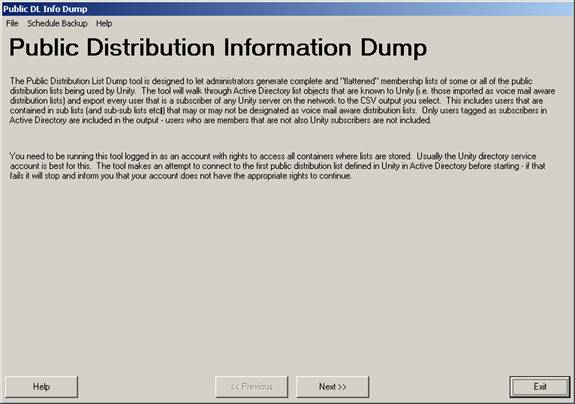
Only information about Unity subscribers (full subscribers as well as AMIS/VPIM/Bridge/SMTP subscribers) and public distribution lists Unity is aware of are included in the output. However the subscribers can be homed on any server – it’s not necessary to run PDLID on multiple Unity servers to get a full listing of all Unity subscribers associated with any given public distribution list. Note that PDLID WILL walk through sub lists that may not be voice-mail enabled public distribution lists. In other words if you have a list called “My Unity Subscribers” that is enabled as a voice mail voice mail list and it contains several sub lists that are not imported into Unity, PDLID will still walk through all those lists looking for members who are also subscribers on a Unity server somewhere in your network.
PDLID can take a while to run. Iterating through every list and all their sub lists will take some time given the size of the lists, how deeply “nested” they are, the speed of your network and domain controller traffic. It’s a read only operation and outside of introducing some additional network traffic to walk through AD it will do no harm to your system and it should be fine to run this any time during the day on any Unity server in your network.
Note that for this tool to work directory replication in your Unity network must be working and up to date. PDLID is pulling subscriber information from the global subscriber table in the local SQL database which is a complete accounting for all users that are associated with some Unity server anywhere on your domain. If you add a user on Unity A and run PDLID on Unity B before replication has completed, that user will not show up in the PDLID output anywhere even if they are members of one or more distribution lists you select for output.
Requirements/Special
Notes
This version of Public Distribution List Info Dump requires Unity 4.0(3) or later.
Public Distribution List Info Dump must be run on the same server where Unity is installed. You can run it against any Unity server in a network, it doesn’t matter which one.
The Public Distribution List Info Dump works with Unity connected to Exchange 5.5, Exchange 2000 or Exchange 2003. It does not support Unity connected to Domino.
You must be logged in as an account that has rights to access objects in all containers in Active Directory were Public Distribution lists that Unity is aware of can reside.
Using
Public DL Info Dump
The Public Distribution List Builder is a very simple 3 page wizard. It allows you to select which distribution lists you wish to run the report against and where you wish to export the information to. No other options are provided. The output is listed in the next section.
Logging
The Public Distribution List Info Dump tool creates a single
CSV file for all output. The top
line includes the following 15 columns (in order) which should all be pretty
self explanatory with the exception of the ”LEGACY_MAILBOX”
field. This is the extension number
of an Octel user when using the
DL_ALIAS,
DL_DISPLAY_NAME,
DL_EXTENSION,
USER_TYPE,
USER_ALIAS,
USER_DISPLAY_NAME,
USER_FIRST_NAME,
USER_LAST_NAME,
USER_HOME_SERVER,
USER_LEGACY_MAILBOX,
USER_EXTENSION,
USER_ALT_EXT_1,
USER_ALT_EXT_2,
USER_ALT_EXT_3,
USER_ALT_EXT_4,
USER_ALT_EXT_5
Each user found for each distribution list has their own line in the CSV file. If you select to export information about 10 public distribution list and those lists have 10 users each there will be 100 lines in the output. You can open it in Excel and sort by distribution list name or home server or whatever you like.
NOTE: It is possible to have multiple entries for the same subscriber associated with the same public distribution list in the output. This can happen if that user is a member of one or more sub lists associated with a single distribution list. PDLID makes no attempt to weed out these duplicates. If you see several entries for the same user for the same lists it’s likely because that user appears in several sub distribution lists associated with that list.
If you select to not expand sub lists then only the top level users will be output (either with a user type of “USER”) and any sub lists will be noted as a user type of “LIST” and the membership information about that list will not be expanded.
Scheduling
Backups
Scheduled exports of your distribution list membership can be schedule to run on a regular schedule during off hours. To schedule an export time you need to do two things: select which lists to include in the export and then schedule the backup.
On the last page of the Distribution List Dump wizard there is a button “Save Settings for Scheduled Runs”. All the lists currently selected for export will be saved into a CSV file in the installation directory which is used when the tool runs scheduled. The selected folder for the CSV file output will also be saved for used during scheduled runs. If you run “live” exports with other lists selected this won’t affect your backup lists. You can change the lists that are included in the scheduled exports using the “Save Settings for Scheduled Runs” later.
To schedule the backup, select the “Schedule Backup” menu item on the first page of the wizard. The backup scheduler dialog will pop up:
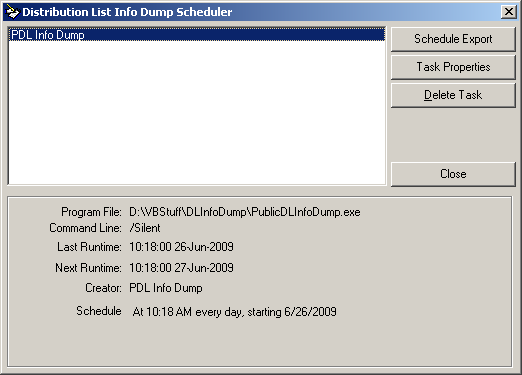
Note that all items in the Windows scheduler interface are shown, not just the distribution list dump schedules. You can delete and edit any of them in this dialog, so be cautious. The schedule interface is pretty straight forward – if you edit an existing schedule event or create a new one, you’ll see the schedule dialog:
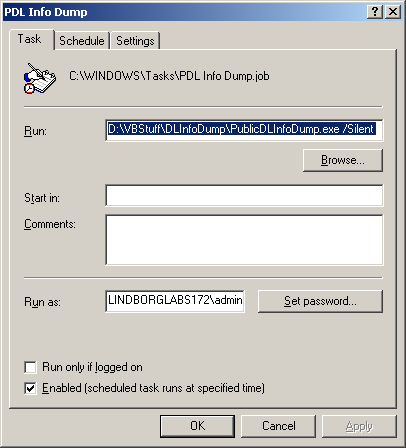
It’s important to note that you need to remember to check the “Enabled” box at the bottom (it is not checked by default) and set the password for the “run as” account – this will default to the account you’re currently logged in as. Without both of these things done, scheduled exports will not execute properly.
Information about the backup (errors, warnings, success info) will be logged to the Windows event log when they are run as a scheduled task. The Distribution List Info Dump tool does not write information to the event log if you run it manually at the desktop. Be sure to check the PDLID logs and/or the event log for problems. The event log information for PDLID includes these 3 message types (eventIDs 1, 2, and 3):
Information for
export started:
Event Type: Information
Event Source: PDLInfoDump
Event Category: PDL Info Dump Export
Event ID: 1
Date: 6/3/2009
Time: 11:13:01 AM
Description:
PDL Info Dump export Started
Information for
export completed:
Event Type: Information
Event Source: PDLInfoDump
Event Category: PDL Info Dump Export
Event ID: 2
Date: 6/3/2009
Time: 11:16:02 AM
Description:
PDL Info Dump export Finished
Errors are EventID 3:
Event Type: Error
Event Source: PDLInfoDump
Event Category: PDL Info Dump Export Status
Event ID: 3
Description: (error) Could not log into AD for distribution list export
Obtaining
Updates
To check for updates to this tool, visit http://www.ciscounitytools.com/
Revision
History
Version 1.0.9 – 6/1/2010
· Added ability to manually select which domain controller to attach to for the directory walk.
· Updated access check routine to limit itself to only a DL that’s been selected, not the first one in the database.
Version 1.0.8 – 11/3/2009
- Added option to not expand sub list membership data in output.
Version 1.0.7 – 6/26/2009
- Revised scheduled export functionality to include output folder for CSV file.
- Moved scheduled selection save option to the last page of the wizard.
Version 1.0.6 – 6/3/2009
- Added scheduled backup option.
- Added event log output when running in silent mode.
Version 1.0.5 – 5/29/2009
- Forced quotes around the DL and User display names and the first/last user names to avoid problems with commas that may be present in those fields.
- Changed query to be an outer join so if there’s no home server value for a contact the row is still returned.
- Added “contact” to the active directory filter type when walking objects in AD so SMTP/AMIS/Brige/VPIM users that are DL members are included in the output.
Version 1.0.2 – 5/28/2009
- First public release
© 2010 Cisco Systems, Inc. -- Company Confidential