Silence Trimmer
Maximum
voice names to update.
Noise
level to consider silence.
Amount
of silence that must be present before trimming.
Amounts
of silence to leave on the WAV file start/end.
Overview
Silence Trimmer is designed to find subscriber voice name and/or greetings that have too much silence and trim them up. One problem sites encounter is with synchronizing voice names with external systems (such as Octel voice mail systems via the Bridge) where the voice names can have multiple seconds of silence either at the beginning or end of the file or both.
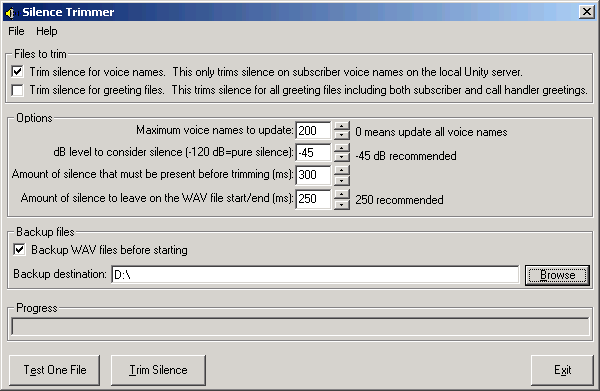
Silence Trimmer will check each file to see if it has more than a specified amount of silence (see the Options section below for more) before trimming it. If the file does not have enough silence to trim, it will be skipped. This is especially important when updating voice name files since changes to each voice name will result in a synchronization request to the directory. If you would like to minimize the impact to the directory you can run Silence Trimmer against a smaller number of voice names by adjusting the “Maximum voice names to update” value multiple times over a longer period as opposed to updating all voice names on the local server in one shot. Again, see the Options for more.
NOTE: Silence Trimmer ONLY updates voice names and greetings for local subscribers and greetings for call handlers on the Unity server. It does not touch subscribers on other Unity servers or touch voice names or greetings for other objects in the directory such as interview handlers, location objects and public distribution lists.
NOTE: Greetings for the Unity created call handlers (Opening Greeting, Say Goodbye and Operator) are not touched.
Requirements/Special Notes
Only works with Unity 4.0(2) or later.
Silence Trimmer must run on the Unity server.
Silence Trimmer only touches voice names and/or greetings for local subscribers and call handlers on the Unity server.
NOTE: Greetings for the Unity created call handlers (Opening Greeting, Say Goodbye and Operator) are not touched.
It’s a good idea to run Silence Trimmer with CSA and any Virus Scanning tools disabled if possible. CSA may prevent the WAV trimming process from running entirely and Virus Scanning software will slow the update process considerably.
For failover setups you need to run Silence Trimmer on the Active server. It’s also best to disable automatic failover/failback by forcing the failover monitor in to manual mode while running Silence Trimmer. Since the failover file replication process (disabled when in manual mode) is copying these WAV files when they change, this can cause conflicts with file handling when running Silence Trimmer that can cause some voice names and/or greetings to not be properly trimmed.
File to Trim
You can choose to trim silence off of just subscriber voice names or just subscriber and handler greeting files or both. You must select at least one option, however.
If you select greetings, this checks greeting files for local subscribers and call handlers only – it does not attempt to trim other WAV files for other objects such as interview handler questions or location object voice names.
NOTE: Greetings for the Unity created call handlers (Opening Greeting, Say Goodbye and Operator) are not touched.
Options
NOTE: As a rule you should run Silence Trimmer with the default values it ships with for the options. The maximum number of voice names to update is fine to adjust as you see fit but the other three values should be changed only by advanced users who have a specific reason for modifying them.
Maximum voice names to update.
If you choose to trim silence from subscriber voice names, this value limits how many voice names can be updated at one time. Since voice names need to be synchronized to the directory, updating many of them at once can cause undesirable amounts of traffic on your network. Since Silence Trimmer only updates WAV files that have a specified amount of silence on them you can run Silence Trimmer multiple times over a period of days/weeks and eventually get all the voice names trimmed using this method.
Noise level to consider silence.
This is a value of -80 dB to 0 dB. -120 is considered absolute pure silence which, of course, will never happen in a real recording so -80 dB is as low as you can set this (which is still very, very low). A value of -45 dB is recommended. If you set this value too low then no silence will be detected at the beginning or end of the WAV files being checked. If you set this value too high it may trim voice from the beginning and/or end of the WAV files.
CAUTION! Only change this value if you know what you’re doing! If you do change it, please test single WAV files several times to make sure it works as you expect.
Amount of silence that must be present before trimming.
This is the number of milliseconds of silence that must be present at the beginning and/or end of a WAV file for Silence Trimmer to decide if a WAV file needs to be trimmed or not. Don’t set this too low, 300 ms (1/3 of a second) is a good value.
Amounts of silence to leave on the WAV file start/end.
Trimming ALL the silence off the front and back of a voice name or greeting may make it sound “clipped” when played next to other WAV files as part of a conversation. As such you need to keep a small amount of silence as a buffer. By default this is left at 250 ms which testing has demonstrated is a good value.
Backup files
If you select the Backup WAV files before starting option, Silence Trimmer will first copy all the WAV files from the \Commserver\Stream Files\ folder to the target backup directory you select. This is a good idea in case something goes wrong with the trimming process and you need to restore the original files. You will find the option to restore the backed up WAV files under the File menu.
Test One File
If you decide you want to customize the options for noise level, silence padding and amount of silence to check for, it’s a very good idea to test these on a single WAV file first before applying them to all voice names and/or greetings on the Unity server. The “Test One File” button is designed for this purpose. Pressing this button will bring up a file selection dialog and you can point to a specific WAV file you want to test. Silence Trimmer will then run that WAV file through the same process it will for voice names and greetings and will spit out the resulting file into C:\TrimTest.WAV. If there was no silence detected, it will tell you that, however it will still create the c:\TrimTest.WAV file.
Make sure you test a few files if you customize the defaults.
Logging
Each time the Silence Trimmer tool is run it generates a new log in the \logs folder under its installation directory. The logs are named “SilenceTrimmer_Log_YYYYMMDD_HH_MM_SS.txt”. The time used in the hour (HH) field is in 24 hour format. Each time Silence Trimmer is run it’ll delete log files older than 30 days found in that directory. The log file output is very simple – it will show which greeting or voice name is being checked and if it contained enough silence to trim or not. In the case of voice names it will also indicate a directory synchronization request is being made. The output looks like this:
11/2/2004 10:07:58 AM: Checking voice name for subscriber alias=EAdmin
11/2/2004 10:07:58 AM: Trimming silence from subscriber's voice name
11/2/2004 10:07:58 AM: Directory synch requested for objectID={055D7FE4-2224-4D19-BD5C-94BC89EA2CA6}
Silent Installs
To install this application silently, you can pass the following command line options to SilentTrimmer_Setup.EXE:
/S /v/qn
This will install the Silence Trimmer in the \Program Files\SilenceTrimmer\ directory automatically. This also works for upgrading versions.
Obtaining Updates
To check for updates to this tool, visit http://www.ciscounitytools.com
Revision History
Version 1.0.10 – 12/23/2004
 Updated default dB, buffer and trim minimum
values after testing was done.
Updated default dB, buffer and trim minimum
values after testing was done.
Version 1.0.9 – 12/15/2004
Added additional logging to output to include
full path found in SQL for voice name stream files.
Added additional error output if the file
referenced in SQL was not found on the hard drive.
Version 1.0.8 – 12/9/2004
First released version
© 2004 Cisco Systems, Inc. -- Company Confidential